

Web UI
The Web UI is where you interact with lynox day-to-day. It runs at localhost:3000.
Phone access: Open Settings → Mobile Access, scan the QR code with your phone — you’re logged in instantly. For access outside your WiFi, see Remote Access.
Navigation
Section titled “Navigation”The left side of the screen is an icon rail. Each icon opens a hub:
- Chat — the conversation surface (default view)
- Inbox — the Unified Inbox for email triage (additional channels under evaluation)
- Automation — workflows, scheduled reminders, and the AutomationHub tab
- Intelligence — memory, knowledge graph, CRM contacts and deals
- Artefakte — files, code, and other outputs lynox has produced
Each hub opens to a flat list with the sub-navigation right under the title — no nested folder trees. Click the kebab (⋯) at the rail root for settings, integrations, and account.
The main view. Type a message or drop a file to start a conversation. lynox streams responses in real time, showing tool calls inline as they happen.
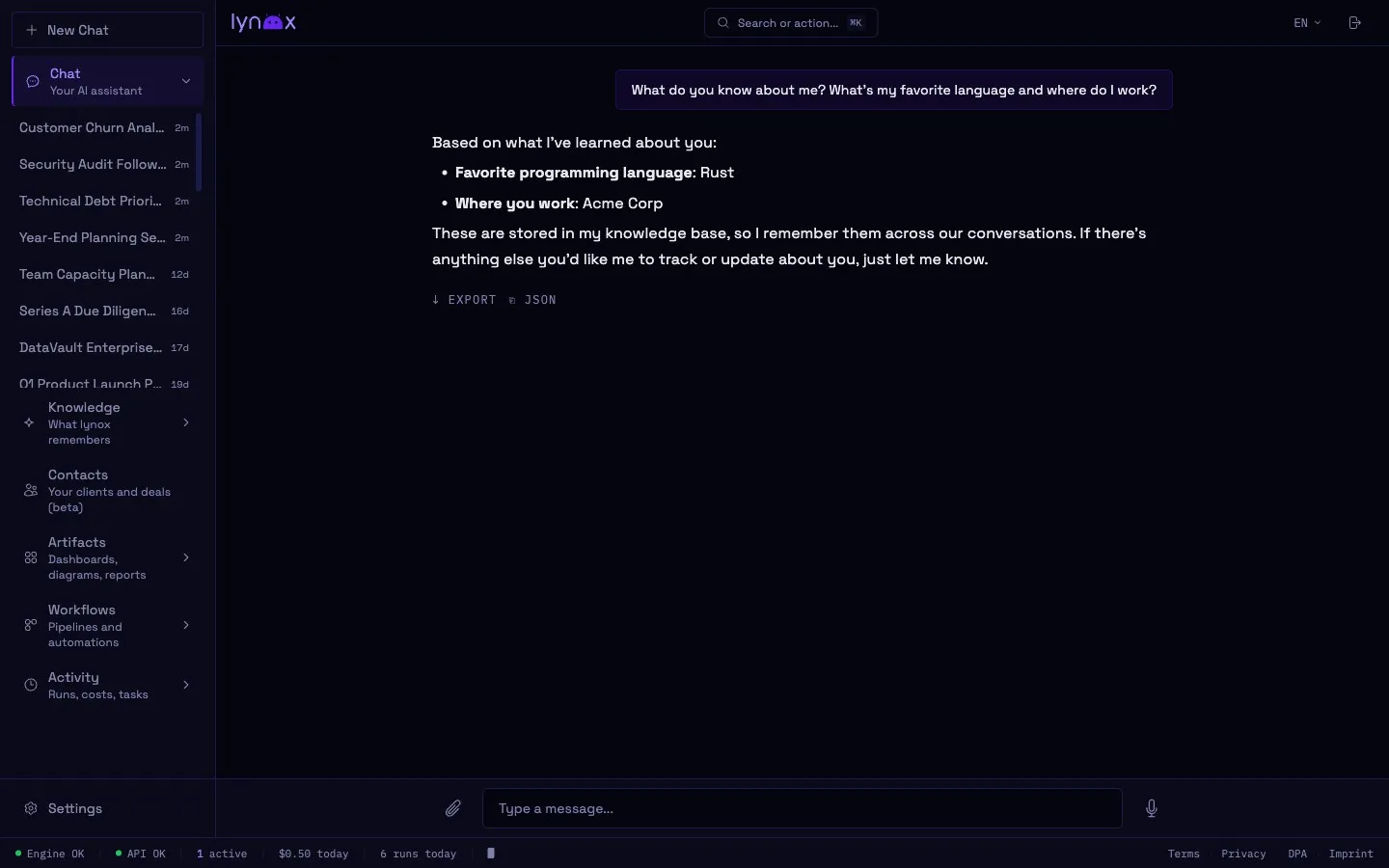
During workflows, a progress bar appears above the input showing each step as it executes.
Threads
Section titled “Threads”Every conversation is saved as a thread. The sidebar lists your threads — click to resume any past conversation. Very long threads are automatically summarized once they grow past a token budget (configurable via compaction_token_budget), so the agent keeps a compact working memory of the conversation instead of re-sending the entire history on every turn.
You can rename, archive, delete, or export a thread (including a debug bundle) from the sidebar.
Artifacts
Section titled “Artifacts”When lynox generates files, code, or other outputs, they’re saved as artifacts. Access them from the artifacts gallery — view, download, or delete.
Command Palette
Section titled “Command Palette”Press Ctrl+K to open the command palette for quick navigation between views.
Memory
Section titled “Memory”Browse what lynox has learned — organized into four namespaces:
- Knowledge — Facts, relationships, business context
- Methods — How you do things, preferences, workflows
- Status — Current state of projects and tasks
- Learnings — Insights from past interactions
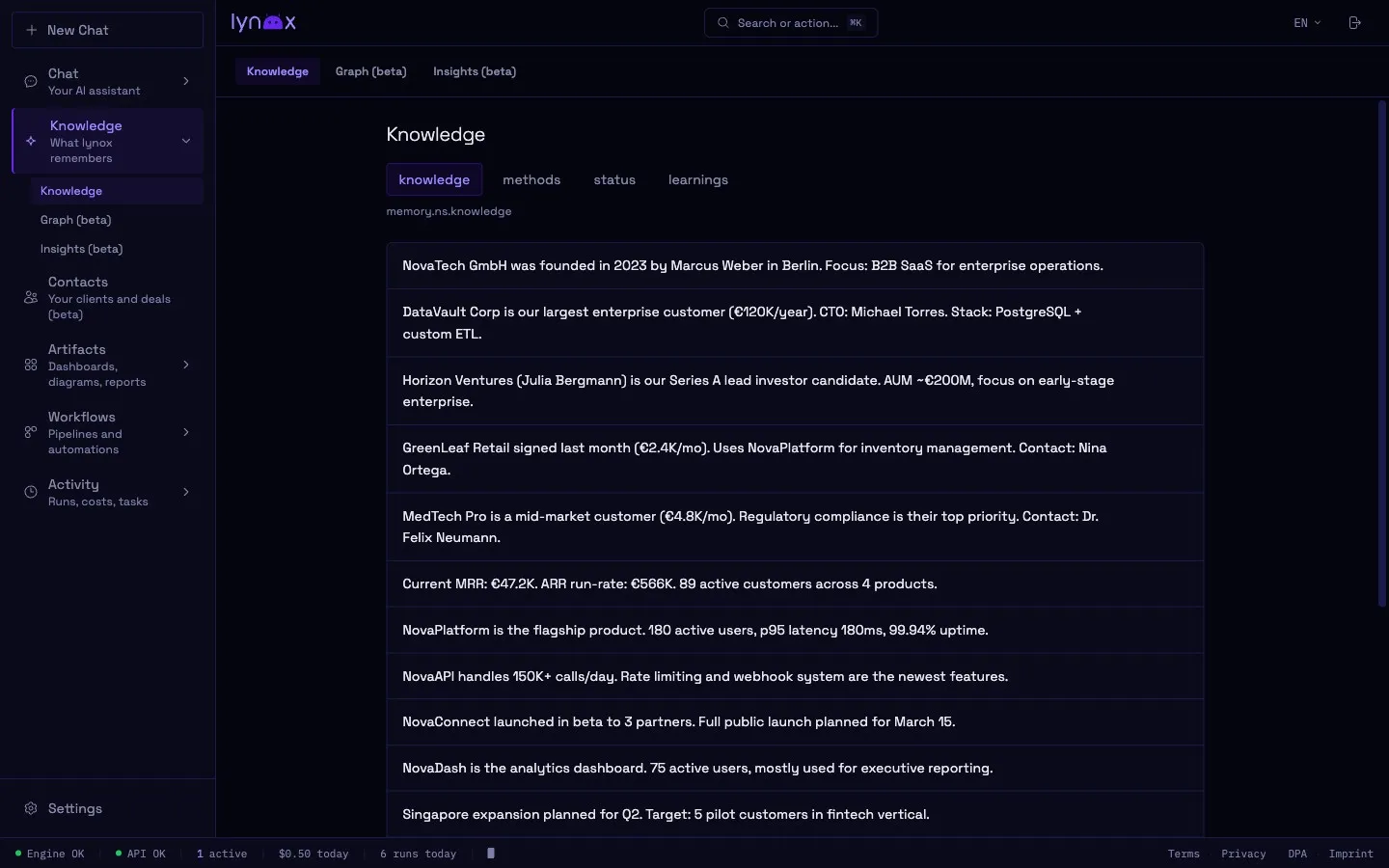
You can edit or delete any memory entry.
Knowledge Graph
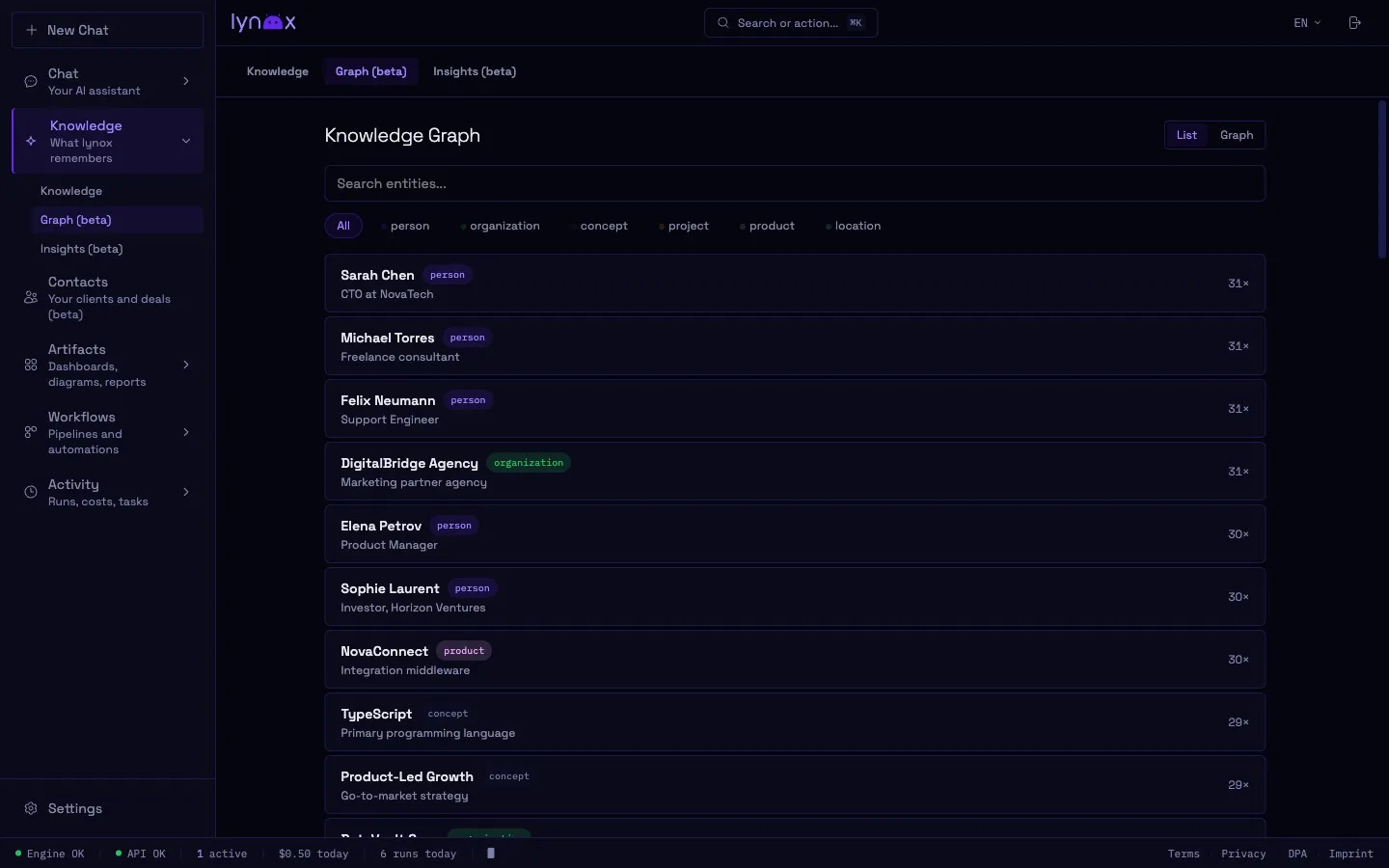
Section titled “Knowledge Graph”Visual explorer for entities and their relationships. See how contacts, companies, projects, and concepts are connected. Click any entity to see its details and related nodes.
Insights
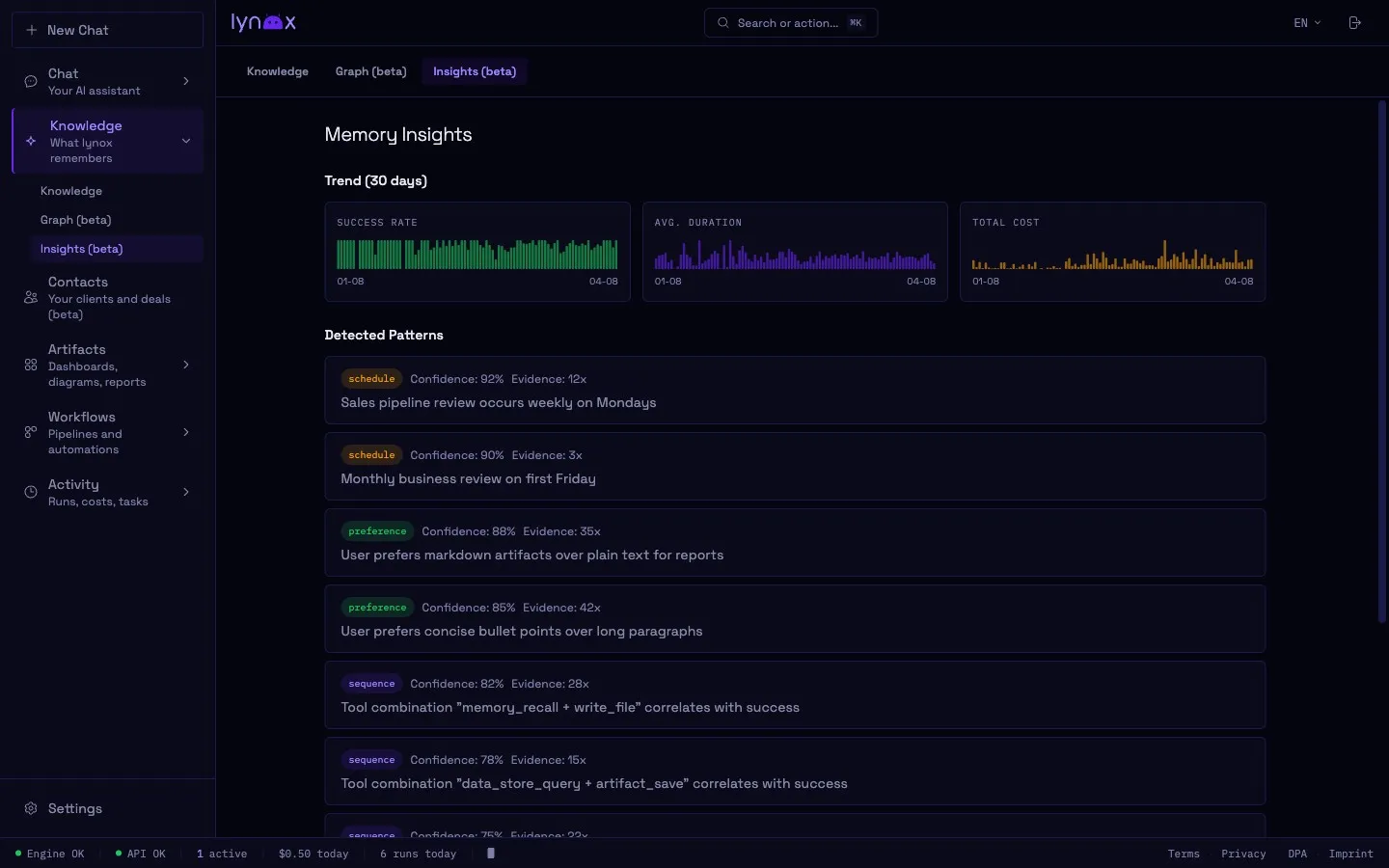
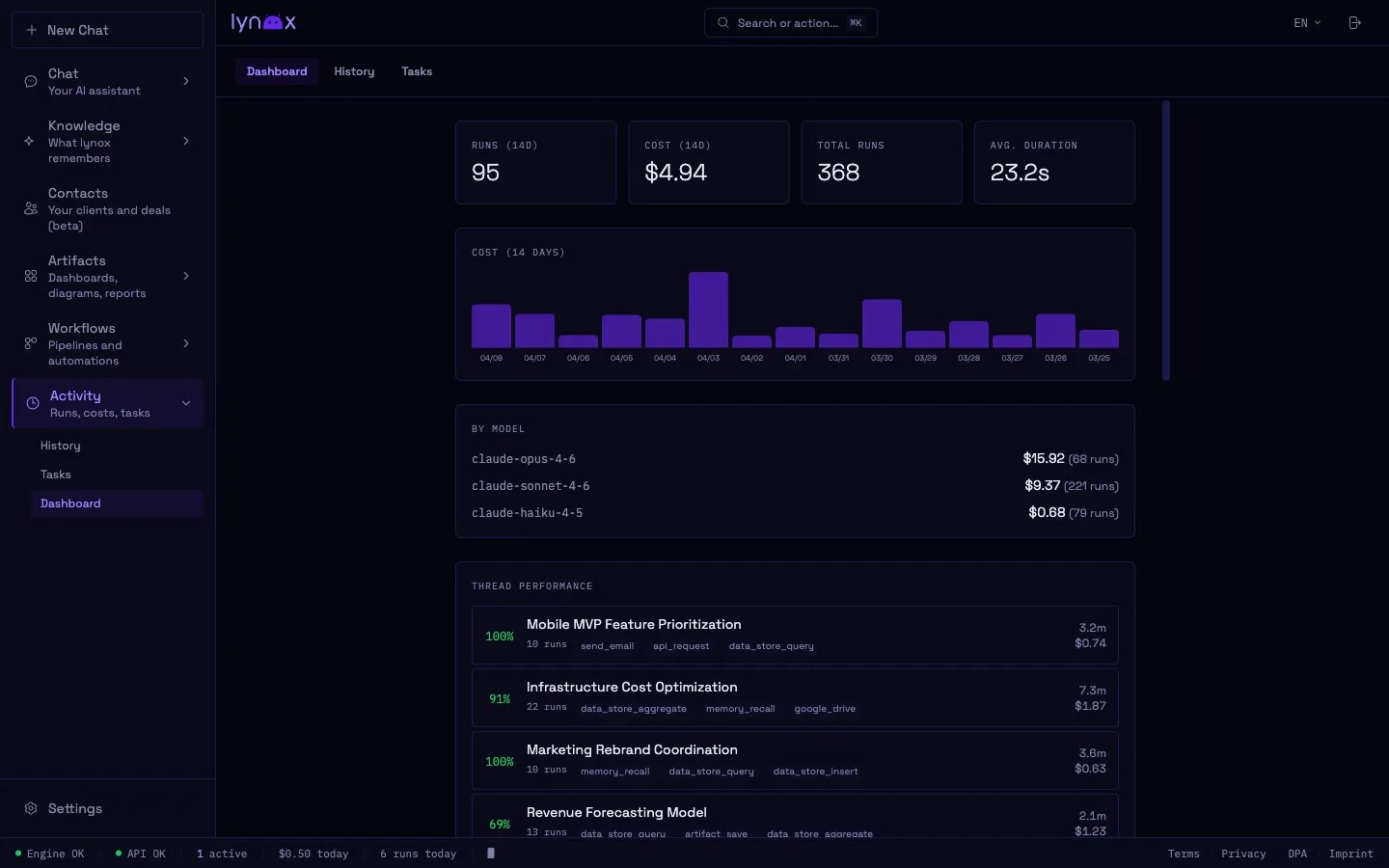
Section titled “Insights”Success rates, cost trends, detected patterns, and per-thread analytics. All computed from your actual usage data.
Workflows
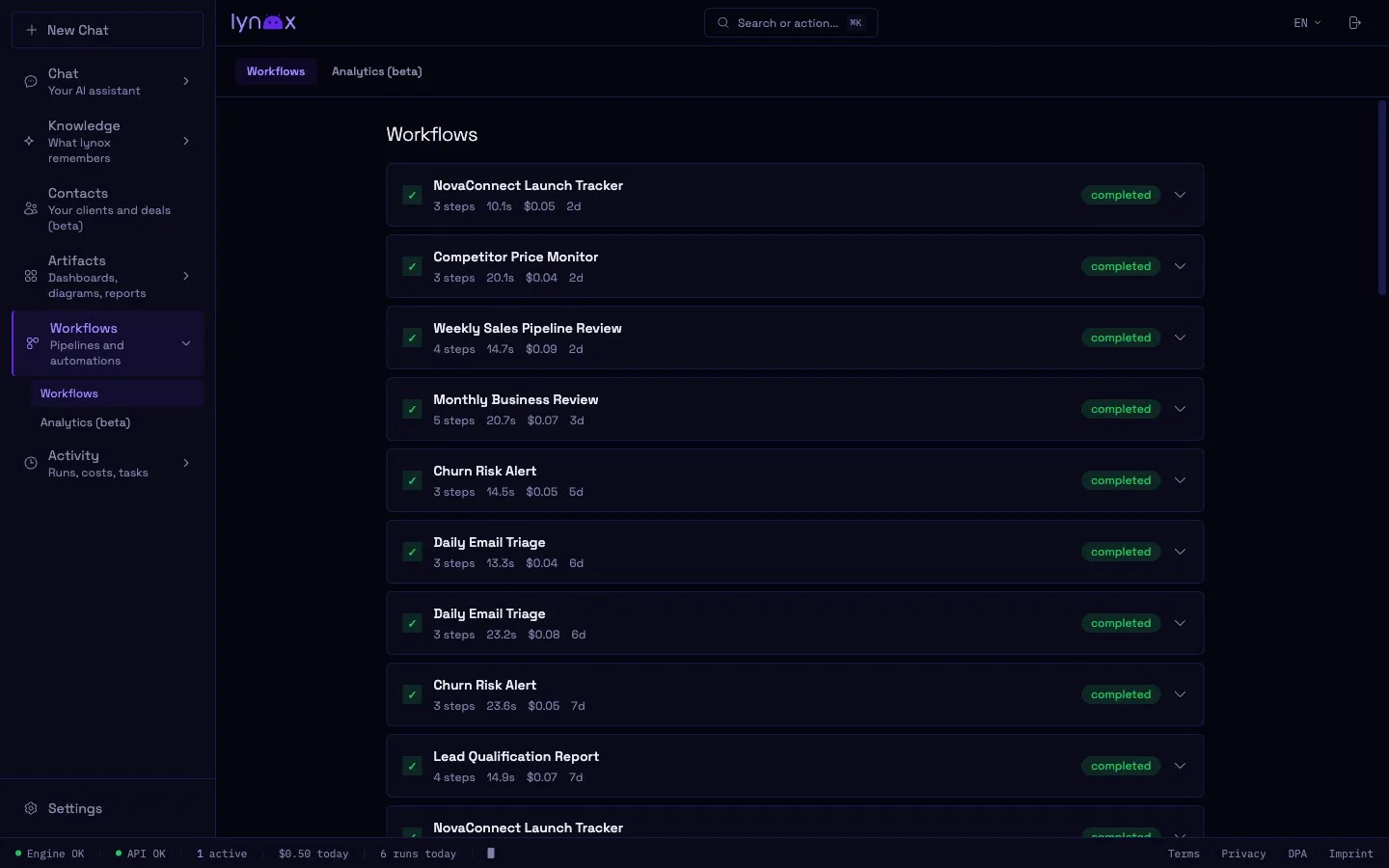
Section titled “Workflows”View and manage your automated workflows. See execution history, success rates, and upcoming schedules. Expand any workflow to inspect individual steps and their results.
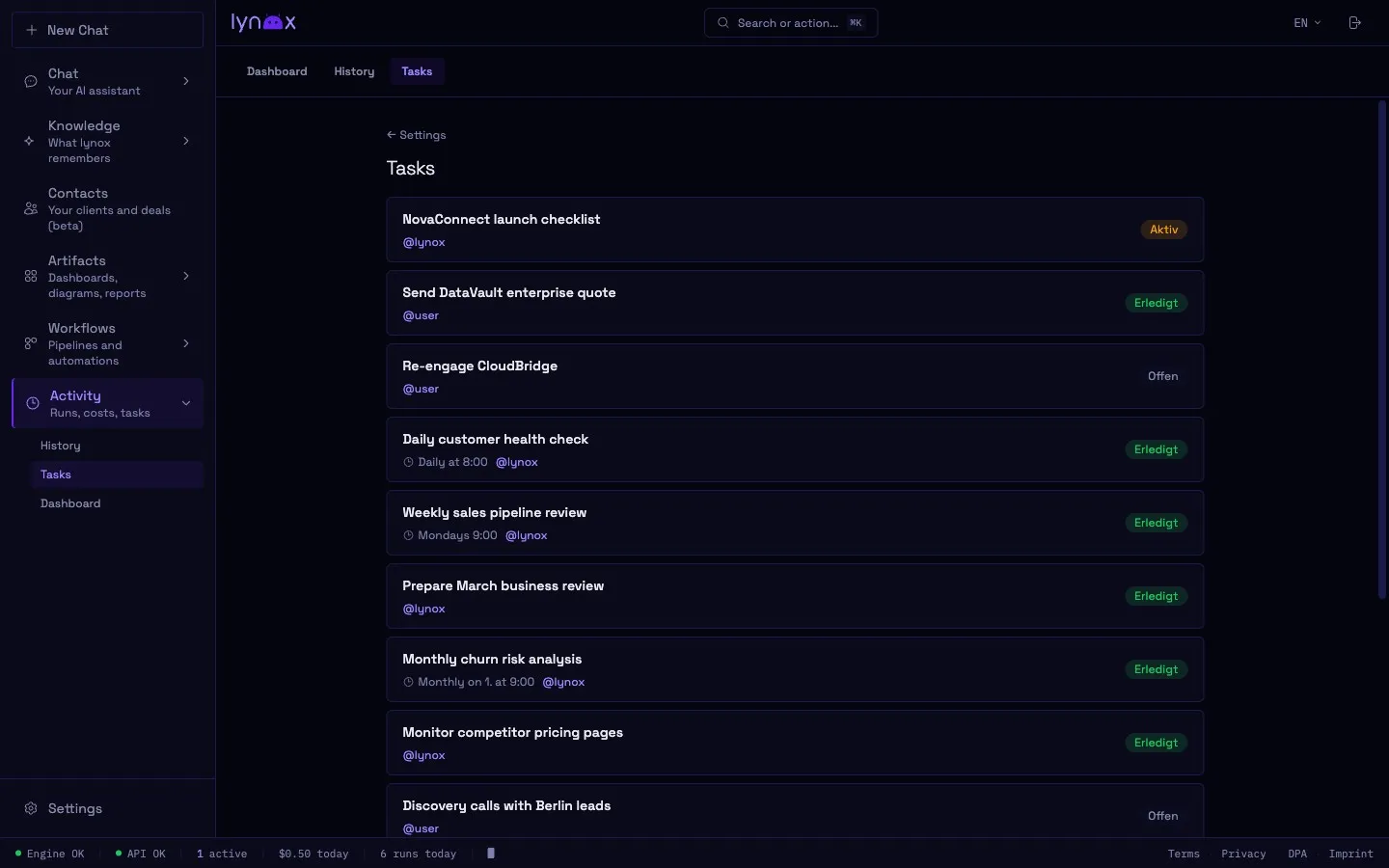
Your task board — create tasks manually or let lynox create them during conversations. Track status, update priorities, and mark tasks complete.
Artifacts
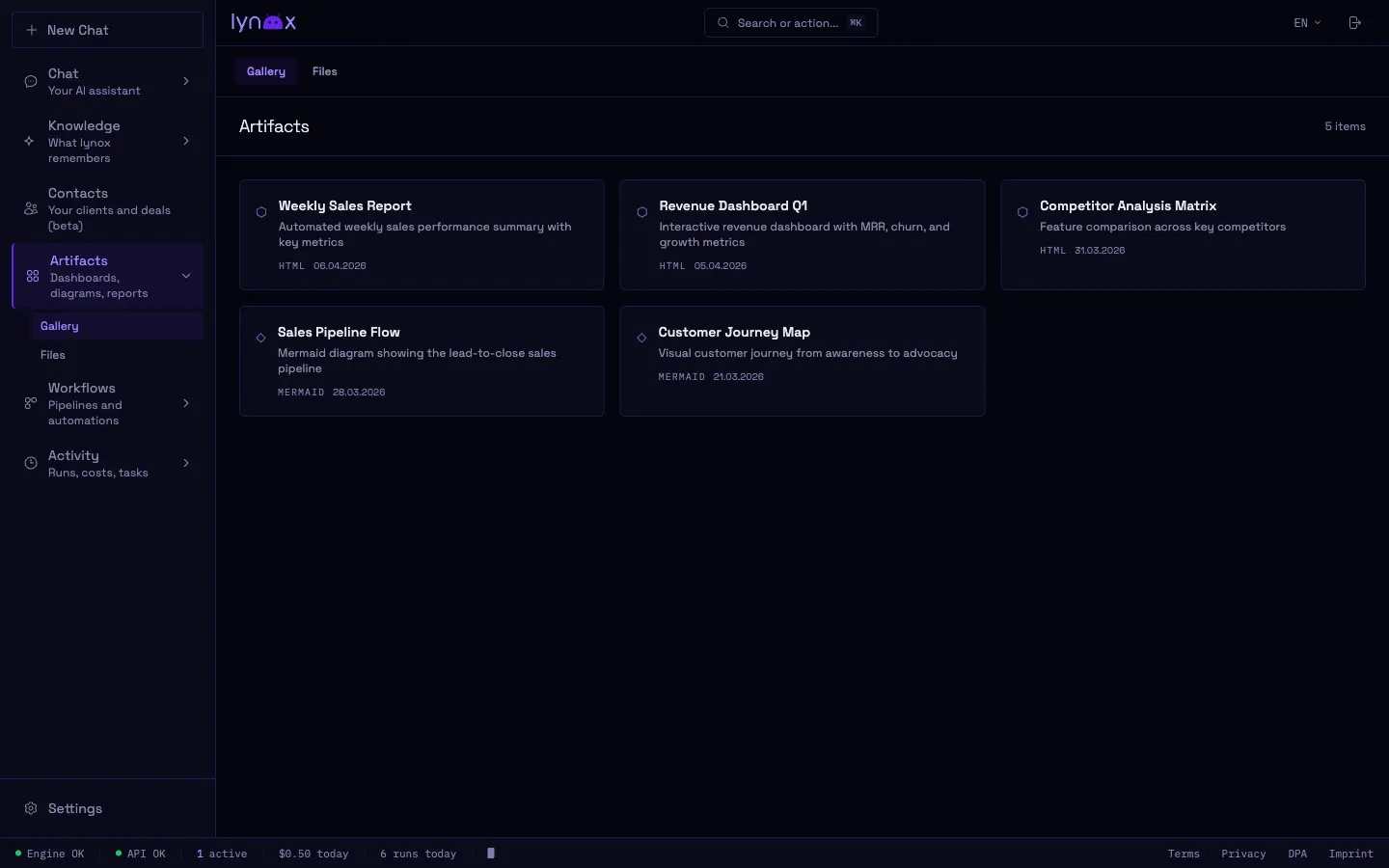
Section titled “Artifacts”Dashboards, diagrams, and reports generated by lynox. Browse the gallery, open inline previews, or download as HTML.
Automation Hub & Activity Hub
Section titled “Automation Hub & Activity Hub”The Automation Hub lives at /app/hub — your library of Workflows, Tasks, and APIs. Browse, edit, and launch saved automations from one surface.
The Activity Hub lives at /app/activity — history of all runs (what was asked, which model was used, token cost, and duration). Filter by date, model, or status. Useful for reviewing what lynox did in background tasks. Limits-editing lives at Settings → Workspace → Limits (self-host) under /app/settings/workspace/limits.
The Models panel (toggle in the toolbar) breaks down spend per model with input, output, and cache-hit token counts side-by-side — the fastest way to see whether your workload is sitting on the right tier or paying for cache misses you could prefetch.
Contacts & CRM
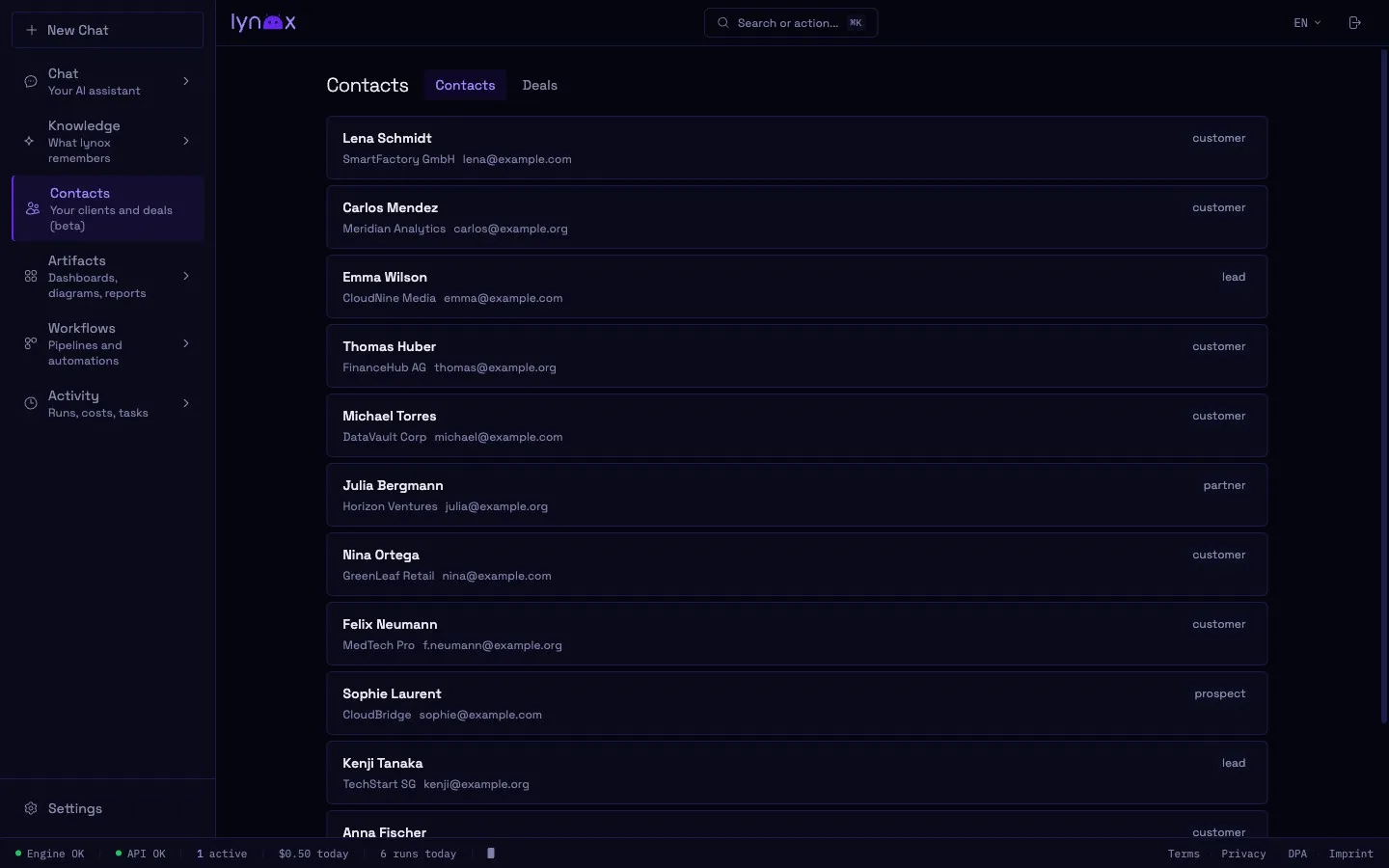
Section titled “Contacts & CRM”Browse your contact database and deals. lynox builds this automatically from your conversations and integrations. See interaction history for any contact.
Settings
Section titled “Settings”Access via the gear icon or navigate to /app/settings/.
| Section | What it does |
|---|---|
| Mobile Access | QR code to connect your phone — scan once, auto-login |
| Config | Model selection, cost limits, greeting, memory settings |
| Keys | Manage your encrypted vault — API keys and secrets. Secrets can also be added via the secure ask_secret dialog in chat |
| Integrations | Connect Mail (IMAP/SMTP), Google Workspace |
| APIs | REST API profiles for external services |
| Data | Browse structured data collections |
| Tasks | Manage scheduled background tasks |
| Backups | Create, schedule, and restore backups |
Languages
Section titled “Languages”The Web UI supports German and English. Switch languages at runtime from the settings — no restart required.