

Workflows & Roles
lynox has four built-in roles, each optimized for a different type of work:
| Role | Tier | Strengths | Restrictions |
|---|---|---|---|
| Researcher | balanced |
Deep analysis, source citation, thorough exploration | Read-only — can’t modify files or run commands |
| Creator | balanced |
Content creation, writing, tone adaptation | No system commands |
| Operator | fast |
Fast status checks, concise reporting | Tool-restricted (bash + read tools allowed; no write tools) |
| Collector | fast |
Structured Q&A, data gathering | Minimal tools — memory and user interaction only |
Tiers are provider-agnostic (deep / balanced / fast) and resolve to the active provider’s models — e.g. on Mistral balanced → mistral-medium-2604. They are not tied to Anthropic model names.
Switching roles
Section titled “Switching roles”In the Web UI or CLI, switch roles by telling lynox:
- “Switch to researcher mode”
- “Act as operator and check the status of…”
The role determines which model tier is used, what tools are available, and how autonomous lynox operates. The default mode uses the balanced tier with full tool access.
Background Tasks
Section titled “Background Tasks”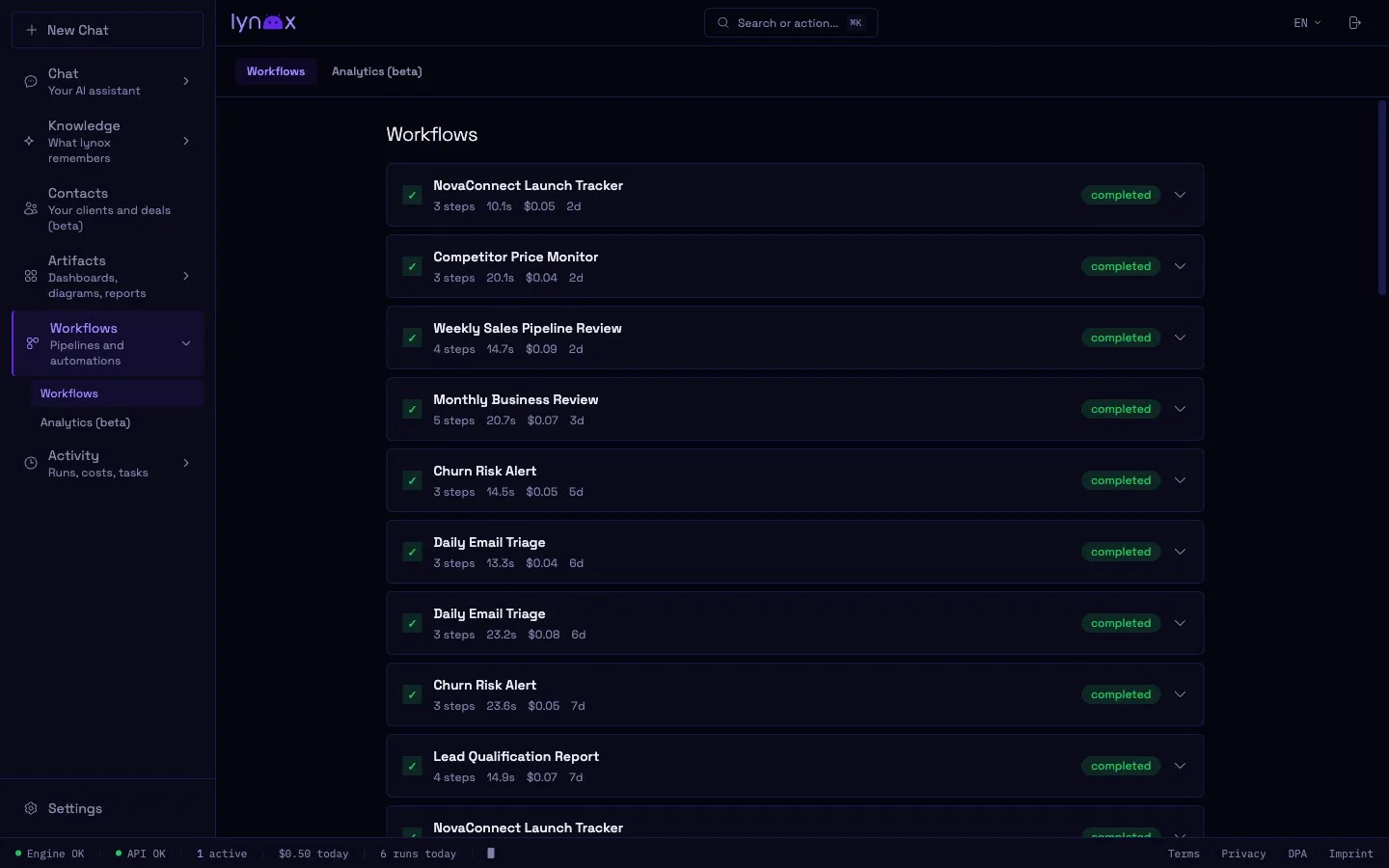
lynox can run tasks in the background — scheduled or triggered. Results are delivered via your notification channel (Web UI Activity Hub, mail, or push).
Creating tasks
Section titled “Creating tasks”Tell lynox what you want automated:
- “Check my inbox every morning at 8am and summarize new emails”
- “Monitor competitor.com weekly and alert me if their pricing page changes”
- “Run a revenue report every Monday”
Or create tasks in the Web UI under Settings → Tasks.
Task types
Section titled “Task types”| Type | Description |
|---|---|
| Standard | Runs a prompt as an autonomous agent session |
| Watch | Monitors a URL for changes — only processes when content differs |
| Backup | Automated database backup (no LLM cost) |
| Workflow | Multi-step workflow with dependent tasks |
When the agent itself schedules a Standard (autonomous agent) run, that trigger requires your explicit confirmation before it first fires — so a task set up on your behalf can’t start running unattended without you approving it. Tasks you create yourself in the UI are already explicit and run as scheduled.
Scheduling
Section titled “Scheduling”Tasks use cron syntax for scheduling:
# Every day at 8:00 AM0 8 * * *
# Every Monday at 9:00 AM0 9 * * 1
# Every 6 hours0 */6 * * *
URL Monitoring
Section titled “URL Monitoring”Watch tasks are cost-efficient — lynox fetches the URL and computes a hash. Only when the content changes does it trigger an LLM analysis. This means monitoring a stable page costs nothing.
"Monitor https://competitor.com/pricing every day. Alert me if anything changes."You can target specific parts of a page with CSS selectors for more precise monitoring.
Saving a workflow
Section titled “Saving a workflow”When you work through a task interactively, lynox can save the workflow as a reusable template:
- Work through the task step by step with lynox
- Ask: “Save this as a workflow”
- lynox extracts the steps, parameters, and decision points
- Next time, run the workflow with different inputs
Notifications
Section titled “Notifications”Background task results are delivered through your configured channels:
- Web UI — Results appear in the Activity Hub (
/app/activity) - Mail — Sent to your connected mailbox with a reply-to-act follow-up
- Push — Web push notification if enabled in your browser
If a background task needs your input (e.g., a clarification question), you receive an inline prompt you can answer directly.
Cost Control
Section titled “Cost Control”Background tasks have built-in limits:
- Maximum agent iterations per task (prevents runaway loops)
- Results are truncated to keep notification size reasonable
- Failed tasks retry up to a configured limit before alerting you
- Each task’s cost is tracked in the Activity history